Arkime,也称为Moloch,是一种开源的大规模索引数据包捕获和搜索工具。 它以PCAP格式存储和导出所有捕获的数据包。 您可以使用Wireshark或其他PCAP提取工具来分析PCAP导出的文件。 Arkime带有一个简单且用户友好的Web界面,可用于浏览,搜索和导出PCAP。 它被设计为部署在多个系统中,并且还能够处理每秒千兆比特的流量。
在本文中,我们将向您展示如何在Ubuntu 20.04上安装Arkime Packet Capture工具。
先决条件
- 运行Ubuntu 20.04的服务器。
- 为服务器配置了root密码。
入门
开始之前,您需要将系统软件包更新为最新版本。 您可以使用以下命令更新它们:
apt-get update -y
更新所有软件包后,请使用以下命令安装所需的依赖项:
apt-get install gnupg2 curl wget -y
一旦安装了所有软件包,就可以继续进行下一步。
安装Elasticsearch
Arkime使用Elasticsearch进行索引和搜索。 因此,Elasticsearch必须安装在您的系统中。 默认情况下,Ubuntu默认存储库中不包含最新版本的Elasticsearch。 因此,您需要将Elasticsearch存储库添加到您的系统。
首先,使用以下命令添加GPG密钥:
wget -qO - https://artifacts.elastic.co/GPG-KEY-elasticsearch --no-check-certificate | apt-key add -
接下来,使用以下命令将Elasticsearch存储库添加到APT:
echo "deb https://artifacts.elastic.co/packages/7.x/apt stable main" | tee -a /etc/apt/sources.list.d/elastic-7.x.list
接下来,更新存储库并使用以下命令安装Elasticsearch软件包:
apt-get update -y

apt-get install elasticsearch -y
一旦安装了Elasticsearch,请编辑Elasticsearch配置文件并设置Java内存:
nano /etc/elasticsearch/jvm.options
更改以下行:
-Xms1g -Xmx1g
保存并关闭文件,然后使用以下命令启用Elasticsearch服务以在系统重新引导时启动:
systemctl enable --now elasticsearch
默认情况下,Elasticsearch侦听端口9200。您可以使用以下命令检查它:
ss -antpl | grep 9200
您应该获得以下输出:
LISTEN 0 4096 [::ffff:127.0.0.1]:9200 *:* users:(("java",pid=9518,fd=272)) LISTEN 0 4096 [::1]:9200 [::]:* users:(("java",pid=9518,fd=271))
您还可以使用以下命令检查Elasticsearch:
curl http://localhost:9200
您应该获得以下输出:
{ "name" : "ubuntu2004", "cluster_name" : "elasticsearch", "cluster_uuid" : "9g2B-tNaQl-rjuV32eCgpg", "version" : { "number" : "7.11.1", "build_flavor" : "default", "build_type" : "deb", "build_hash" : "ff17057114c2199c9c1bbecc727003a907c0db7a", "build_date" : "2021-02-15T13:44:09.394032Z", "build_snapshot" : false, "lucene_version" : "8.7.0", "minimum_wire_compatibility_version" : "6.8.0", "minimum_index_compatibility_version" : "6.0.0-beta1" }, "tagline" : "You Know, for Search" }
此时,Elasticsearch已安装并正在运行。 现在,您可以继续下一步。
安装和配置Arkime
首先,使用以下命令下载最新版本的Arkime:
wget https://s3.amazonaws.com/files.molo.ch/builds/ubuntu-20.04/moloch_2.7.1-1_amd64.deb
下载软件包后,请使用以下命令安装下载的软件包:
apt install ./moloch_2.7.1-1_amd64.deb
一旦安装了Arkime,请使用以下命令对其进行配置:
/data/moloch/bin/Configure
系统将要求您指定网络接口,如下所示:
Found interfaces: lo;eth0;eth1 Semicolon ';' seperated list of interfaces to monitor [eth1] eth0
输入您的网络接口名称,然后按Enter继续。 配置完成后,您将获得以下输出:
Install Elasticsearch server locally for demo, must have at least 3G of memory, NOT recommended for production use (yes or no) [no] no Elasticsearch server URL [http://localhost:9200] Password to encrypt S2S and other things [no-default] Password to encrypt S2S and other things [no-default] mypassword Moloch - Creating configuration files Installing systemd start files, use systemctl Moloch - Installing /etc/logrotate.d/moloch to rotate files after 7 days Moloch - Installing /etc/security/limits.d/99-moloch.conf to make core and memlock unlimited Download GEO files? (yes or no) [yes] yes 9) Visit http://MOLOCHHOST:8005 with your favorite browser. user: admin password: THEPASSWORD from step #6 If you want IP -> Geo/ASN to work, you need to setup a maxmind account and the geoipupdate program. See https://molo.ch/faq#maxmind Any configuration changes can be made to /data/moloch/etc/config.ini See https://molo.ch/faq#moloch-is-not-working for issues Additional information can be found at: * https://molo.ch/faq * https://molo.ch/settings
完成后,您可以继续下一步。
初始化Elasticsearch Arkime配置
接下来,您将需要初始化Elasticsearch Arkime配置。 您可以使用以下命令进行操作:
/data/moloch/db/db.pl http://localhost:9200 init
接下来,使用以下命令为Arkime创建一个管理员用户帐户:
/data/moloch/bin/moloch_add_user.sh admin "Moloch SuperAdmin" mypassword --admin
完成后,您可以继续下一步。
启动和管理Arkime服务
Arkime由捕获,查看器和Elasticsearch三个组件组成。 因此,您将需要为每个组件启动服务。
您可以启动molochcapture和molochviewer服务,并使用以下命令使它们在系统重新启动时启动:
systemctl enable --now molochcapture

systemctl enable --now molochviewer
现在,您可以使用以下命令检查这两种服务的状态:
systemctl status molochcapture molochviewer
您应该获得以下输出:
? molochcapture.service - Moloch Capture Loaded: loaded (/etc/systemd/system/molochcapture.service; enabled; vendor preset: enabled) Active: active (running) since Mon 2021-03-01 11:40:08 UTC; 10s ago Main PID: 11313 (sh) Tasks: 7 (limit: 4691) Memory: 206.6M CGroup: /system.slice/molochcapture.service ??11313 /bin/sh -c /data/moloch/bin/moloch-capture -c /data/moloch/etc/config.ini >> /data/moloch/logs/capture.log 2>&1 ??11315 /data/moloch/bin/moloch-capture -c /data/moloch/etc/config.ini Mar 01 11:40:08 ubuntu2004 systemd[1]: Starting Moloch Capture... Mar 01 11:40:08 ubuntu2004 systemd[1]: Started Moloch Capture. ? molochviewer.service - Moloch Viewer Loaded: loaded (/etc/systemd/system/molochviewer.service; enabled; vendor preset: enabled) Active: active (running) since Mon 2021-03-01 11:40:13 UTC; 5s ago Main PID: 11361 (sh) Tasks: 12 (limit: 4691) Memory: 51.9M CGroup: /system.slice/molochviewer.service ??11361 /bin/sh -c /data/moloch/bin/node viewer.js -c /data/moloch/etc/config.ini >> /data/moloch/logs/viewer.log 2>&1 ??11362 /data/moloch/bin/node viewer.js -c /data/moloch/etc/config.ini Mar 01 11:40:13 ubuntu2004 systemd[1]: Started Moloch Viewer.
现在,您可以使用以下命令检查查看器日志:
tail -f /data/moloch/logs/viewer.log
您应该看到以下输出:
Express server listening on port 8005 in development mode
要检查捕获日志,请运行以下命令:
tail -f /data/moloch/logs/capture.log
您应该看到以下输出:
Mar 1 11:40:49 http.c:382 moloch_http_curlm_check_multi_info(): 1/30 ASYNC 201 http://localhost:9200/dstats/_doc/ubuntu2004-1209-5 806/154 0ms 51ms Mar 1 11:40:49 http.c:382 moloch_http_curlm_check_multi_info(): 1/30 ASYNC 200 http://localhost:9200/_bulk 3737/327 0ms 51ms Mar 1 11:40:50 http.c:382 moloch_http_curlm_check_multi_info(): 1/30 ASYNC 200 http://localhost:9200/_bulk 7246/451 0ms 51ms Mar 1 11:40:51 http.c:382 moloch_http_curlm_check_multi_info(): 1/30 ASYNC 200 http://localhost:9200/stats/_doc/ubuntu2004?version_type=external&version=22 805/149 0ms 51ms Mar 1 11:40:53 http.c:382 moloch_http_curlm_check_multi_info(): 1/30 ASYNC 200 http://localhost:9200/stats/_doc/ubuntu2004?version_type=external&version=23 805/149 0ms 52ms Mar 1 11:40:54 http.c:382 moloch_http_curlm_check_multi_info(): 1/30 ASYNC 201 http://localhost:9200/dstats/_doc/ubuntu2004-1210-5 806/154 0ms 51ms Mar 1 11:40:54 http.c:382 moloch_http_curlm_check_multi_info(): 1/30 ASYNC 200 http://localhost:9200/_bulk 2830/302 0ms 51ms
访问Arkime Web界面
此时,Arkime已启动并正在侦听端口8005。您可以使用以下命令对其进行检查:
ss -antpl | grep 8005
您应该获得以下输出:
LISTEN 0 511 *:8005 *:* users:(("node",pid=11362,fd=20))
现在,打开您的Web浏览器,并使用URL http:// your-server-ip:8005访问Arkime Web界面。 系统将要求您提供管理员用户名和密码,如下所示:
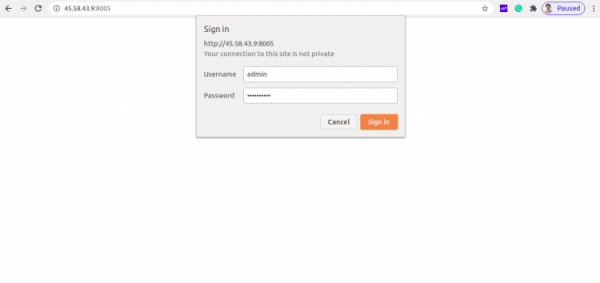
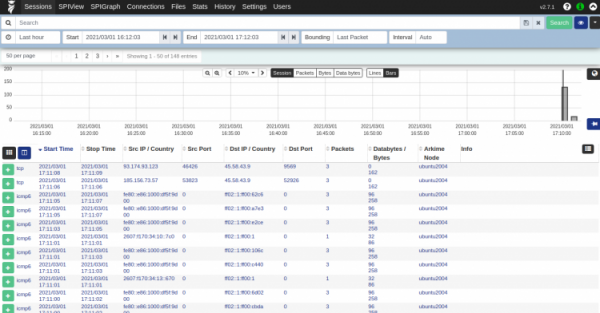
提供您的管理员用户名,密码,然后单击“登录”按钮。 您应该在以下页面中看到Arkime仪表板:
结论
恭喜你! 您已在Ubuntu 20.04服务器上成功安装并配置了Arkime数据包捕获工具。 现在,您可以探索Arkime以获得更多功能,并开始捕获数据包。 如有任何问题,请随时问我。
转自:https://0xzx.com/2021031020511249446.html/amp